5.1. R#
Several versions of R are available via the module system. To load these, you need to load the version of R you want and a version of gcc, which is required to install/load modules.
5.1.1. Compatibility with the Rstudio server#
We highly recommend that you always use gcc/8.5.0 and R/4.3.2
(or another version of R/4.3.x) when loading R on the head or
compute nodes, since this ensures compatibility between all servers on
Esrum:
$ module load gcc/8.5.0 R/4.3.2
Using the --auto option will instead load the latest version of gcc,
currently version 11.2.0.
R modules installed using versions of R other than 4.3.x will simply
not be available on the RStudio server and you will need to install them
again.
Warning
Using a GCC version greater than 8.x with R/4.3.x may cause
modules you install to fail to load on the Rstudio server with the
following error:
See the Troubleshooting section below for more information.
5.1.2. Submitting R scripts using Slurm#
The recommended way to run R on Esrum is as non-interactive scripts submitted to slurm. This not only ensures that your analyses do not impact other users, but also makes make your analyses reproducible.
To run an R script on the command-line, simply use the Rscript
command:
$ cat my_script.R
cat("Hello, world!\n")
$ Rscript my_script.R
Hello, world!
For simple scripts you can use the commandArgs function to pass
arguments to your scripts, allowing you to use them to process arbitrary
data-sets:
args <- commandArgs(trailingOnly = TRUE)

cat("Hello, ", args[1], "!\n", sep="")
$ Rscript my_script.R world
Hello, world!
If your script requires a heterogenous set of input files or options to
run, then it is recommended to use an argument parser such as the
argparser R library. To use the argparser library you must first
install it using the install.packages("argparser") command.
The following is a brief example of how you might use the argparser
library and it can also be downloaded here.
   #!/usr/bin/env Rscript
   library(argparser)

   parser <- arg_parser("This is my script!")

   parser <- add_argument(parser, "input_file", help="My data")
   parser <- add_argument(parser, "--p-value", default=0.05, help="Maximum P-value")

   args <- parse_args(parser)
   cat("I would process the file", args$input_file, "with a max P-value of", args$p_value, "\n")
This allows you to document your command-line options, specify default values, and much more:
$ Rscript my_script.R
usage: my_script.R [--] [--help] [--opts OPTS] [--p-value P-VALUE]
    input_file

This is my script!

positional arguments:
input_file     My data

flags:
-h, --help     show this help message and exit

optional arguments:
-x, --opts     RDS file containing argument values
-p, --p-value  Maximum P-value [default: 0.05]

Error in parse_args(parser) :
Missing required arguments: expecting 1 values but got 0 values: ().
Execution halted
$ Rscript my_script.R my_data.tsv
I would process the file my_data.tsv with a max P-value of 0.05
Finally, you write can write a small bash script to automatically load the required version of R and to call your script when you submit it to Slurm (using your preferred version of R):
$ cat run_rscript.sh
#!/bin/bash

module load gcc/8.5.0 R/4.1.2
Rscript "${@}"
The "${@}" safely passes all your command-line arguments to
Rscript, even if they contain spaces. This wrapper script can then
be used to submit/call any of your R-scripts:
$ sbatch run_rscript.sh my_script.R my_data.tsv --p-value 0.01
Submitted batch job 18090212
$ cat slurm-18090212.out
I would process the file my_data.tsv with a max P-value of 0.01
5.1.3. Installing R modules#
Modules may be installed in your home folder using the
install.packages command:
$ module load gcc/8.5.0 R/4.3.1
$ R
> install.packages("ggplot2")
Warning in install.packages("ggplot2") :
  'lib = "/opt/software/R/4.3.1/lib64/R/library"' is not writable
Would you like to use a personal library instead? (yes/No/cancel) yes
Would you like to create a personal library
‘/home/abc123/R/x86_64-pc-linux-gnu-library/4.3’
to install packages into? (yes/No/cancel) yes
When asked to pick a mirror, either pick 0-Cloud by entering 1
and pressing enter, or enter the number corresponding to a location near
you and press enter:
--- Please select a CRAN mirror for use in this session ---
Secure CRAN mirrors

1: 0-Cloud [https]
[...]

Selection: 1
5.2. RStudio#
An RStudio server is made available at http://esrumweb01fl:8787/. To use this server, you must
Be a member of the
SRV-esrumweb-usersgroup. Simply follow the steps in the Applying for access to the cluster section, and apply for access to this group.Be connected via the KU VPN (a wired connection at CBMR is not sufficient). See Connecting to the cluster for more information.
Once you have been been made a member of the SRV-esrumweb-users and
connected using the VPN or a wired connection at CBMR, simply visit
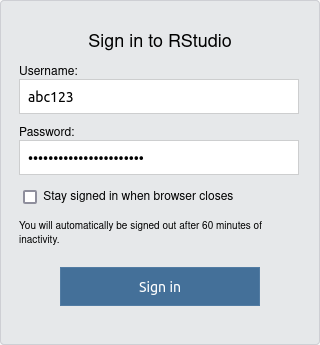
http://esrumweb01fl:8787/ and login using your KU credentials.
For your username you should use the short form:
Warning
The RStudio server is only for running R. If you need to run other tasks then you must connect to the head node and run them using Slurm as described in Running jobs using Slurm.
Resource intensive tasks running on the RStudio server will likely negatively impact everyone using the service and we will therefore terminate such tasks without warning if we deem it necessary.
5.2.1. RStudio server best practice#
Since the RStudio server is a shared resource where that many users may be using simultaneously, we ask that you show consideration towards other users of the server.
In particular,
Try to limit the size of the data-sets you work with on the RStudio server. Since all data has to be read from (or written to) network drives, one person reading or writing a large amount of data can cause significant slow-downs for everyone using the service.
We therefore recommend that you load a (small) subset of your data in Rstudio, that you use that subset of data to develop your analyses processes, and that you use that to process your complete dataset via an R-script submitted to Slurm as described in Running jobs using Slurm.
See also above for a brief example of how to submit R scripts to Slurm.
Don't keep data in memory that you do not need. Data that you no longer need can be freed with the
rmfunction or using the broom icon on theEnvironmenttab in Rstudio, as described below. This also helps prevent RStudio from filling your home folder when your session is closed (see Troubleshooting below).Do not run resource intensive tasks via the embedded terminal. As noted above, such tasks will be terminated without warning if deemed to have a negative impact on other users. Instead such tasks should be run using Slurm as described in Running jobs using Slurm.
5.3. Jupyter notebook#
Jupyter Notebooks are available via the module system on Esrum and may be started as follows:
$ module load jupyter-notebook
$ jupyter notebook --no-browser --port=XXXXX
It is also recommended that you run your notebook in a tmux session or similar, to avoid the notebook shutting down if you lose connection to the server. See Persistent sessions with tmux for more information.
To actually connect to the notebook server, you will need to setup port forwarding using the port-number from your command.
5.3.1. Port forwarding in Windows (MobaXterm)#
The following instructions assume that you are using MobaXterm. If not, then please refer to the documentation for your tool of choice.
Install and configure MobaXterm as described in Configuring MobaXterm.
Click the middle
Tunnelingbutton on the toolbar.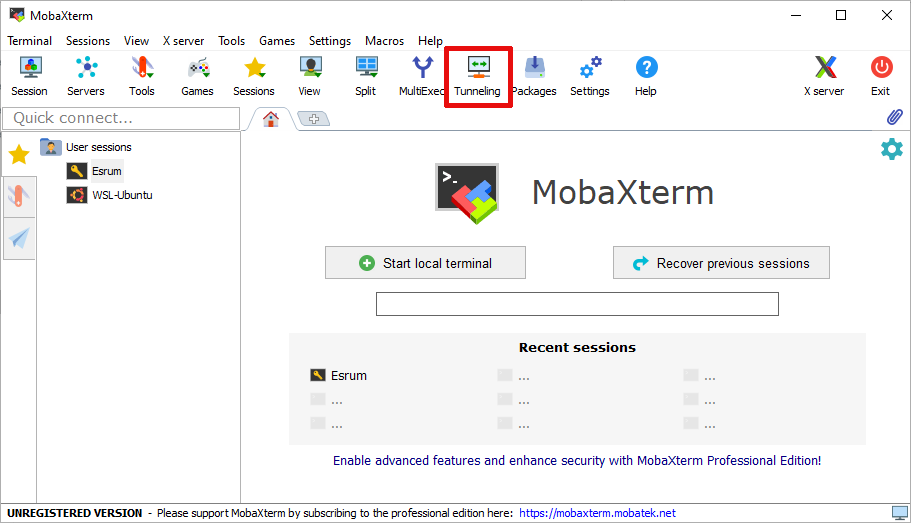
Click the bottom-left
New SSH Tunnelbutton.
Fill out the tunnel dialogue as indicated, replacing
12356with your chosen port number (e.g. XXXXX) and replacingabc123with your KU username. The full name of the SSH server (written in the top row on bottom right) isesrumhead01fl.unicph.domain. Finally clickSave: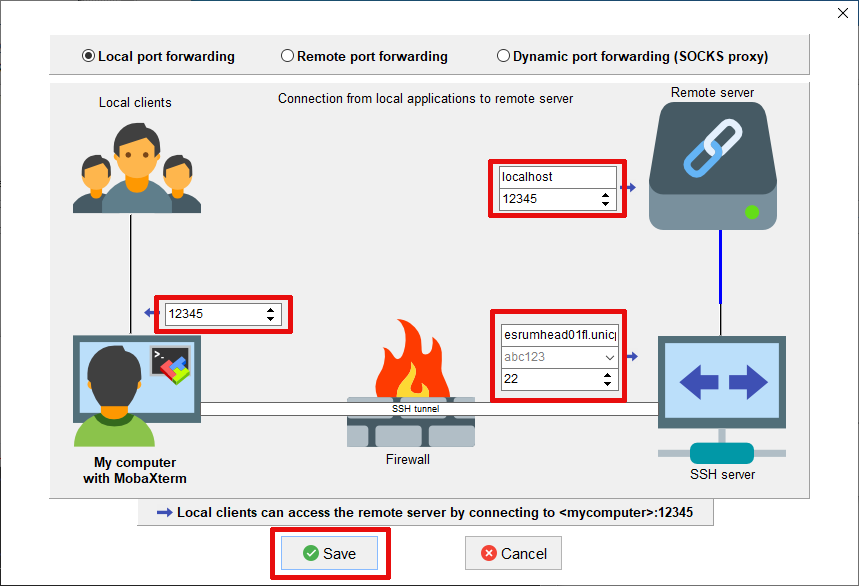
If the tunnel does not start automatically, press either the "Play" button or the
Start all tunnelsbutton:
Enter your password and your SSH tunnel should now be active.
Once you have configured MobaXterm and enabled port forwarding, you can
open your notebook via the
http://localhost:XXXXX/?token=${long_text_here} URL that Jupyter
Notebook printed in your terminal.
5.3.2. Port forwarding on Linux/OSX#
It is recommended to enable port forwarding using your ~/.ssh/config
file. This is accomplished by adding a LocalForward line to your
entry for Esrum as shown below (see also the section about
Connecting on Linux or OSX):
Host esrum esrumhead01fl esrumhead01fl.unicph.domain
    HostName esrumhead01fl.unicph.domain
    User abc123

    LocalForward XXXXX localhost:XXXXX
The LocalForward option consists of two parts: The port used by the
notebook on Esrum (XXXXX), and the address via which the notebook on
Esrum should be accessible on your PC (localhost:XXXXX).
Alternatively, you can start start/stop port forwarding on demand by
using an explicit SSH command. The -N option is optional and stops
ssh from starting a shell once it has connected to Esrum:
$ ssh -N -L XXXXX:localhost:XXXXX abc123@esrumhead01fl.unicph.domain
Once you have port forwarding is enabled, you can open your notebook via
the http://localhost:XXXXX/?token=${long_text_here} URL that Jupyter
Notebook printed in your terminal.
5.3.2.1. Troubleshooting#
5.3.4. R: libstdc++.so.6: version 'GLIBCXX_3.4.26' not found#
If you build an R library on the head/compute nodes using a version of
the GCC module other than gcc/8.5.0, then this library may fail to
load on the RStudio node or when gcc/8.5.0 is loaded on the
head/compute nodes:
$ R
> library(wk)
Error: package or namespace load failed for ‘wk’ in dyn.load(file, DLLpath = DLLpath, ...):
unable to load shared object '/home/abc123/R/x86_64-pc-linux-gnu-library/4.3/wk/libs/wk.so':
/lib64/libstdc++.so.6: version `GLIBCXX_3.4.26' not found (required by /home/abc123/R/x86_64-pc-linux-gnu-library/4.3/wk/libs/wk.so)
To fix his, you will need to reinstall the affected R libraries using one of two methods:
Connect to the RStudio server as described in the RStudio section, and simply install the affected packages using the
install.packagesfunction:> install.packages("wk")You may need to repeat this step multiple times, for every package that fails to load.
Connect to the head node or a compute node, and take care to load the correct version of GCC before loading R:
$ module load gcc/8.5.0 R/4.3.2
$ R
> install.packages("wk")
The name of the affected module can be determined by looking at the
error message above. In particular, the path
/home/abc123/R/x86_64-pc-linux-gnu-library/4.3/wk/libs/wk.so
contains a pair of folders named R/x86_64-pc-linux-gnu-library,
which specifies the kind of system we are running on. Immediately after
that we find the package name, namely wk in this case.
You can identify all affected packages in your "global" R library by running the following commands:
module load gcc/8.5.0 R/4.3.2
# cd to your R library
cd ~/R/x86_64-pc-linux-gnu-library/4.3/
# Test every installed library
for lib in $(ls);do echo "Testing ${lib}"; Rscript <(echo "library(${lib})") > /dev/null;done
Output will look like the following:
Testing httpuv
Testing igraph
Error: package or namespace load failed for ‘igraph’ in dyn.load(file, DLLpath = DLLpath, ...):
unable to load shared object '/home/abc123/R/x86_64-pc-linux-gnu-library/4.3/igraph/libs/igraph.so':
/opt/software/gcc/8.5.0/lib64/libstdc++.so.6: version `GLIBCXX_3.4.29' not found (required by /home/abc123/R/x86_64-pc-linux-gnu-library/4.3/igraph/libs/igraph.so)
Execution halted
Testing isoband
Error: package or namespace load failed for ‘isoband’ in dyn.load(file, DLLpath = DLLpath, ...):
unable to load shared object '/home/abc123/R/x86_64-pc-linux-gnu-library/4.3/isoband/libs/isoband.so':
/opt/software/gcc/8.5.0/lib64/libstdc++.so.6: version `GLIBCXX_3.4.29' not found (required by /home/abc123/R/x86_64-pc-linux-gnu-library/4.3/isoband/libs/isoband.so)
Execution halted
Testing labeling
Testing later
Locate the error messages like the one shown above in the output and and
reinstall the affected libraries using the install.packages command:
$ R
> install.packages(c("igraph", "isoband"))
5.3.5. RStudio: Incorrect or invalid username/password#
Please make sure that you are entering your username in the short form
and that you have been added as a member of the SRV-esrumweb-users
group (see above). If the problem persists, please Contact us
for assistance.
5.3.6. RStudio: Logging in takes a very long time#
Similar to regular R, RStudio will automatically save the data you have loaded into your R session and will restore it when you return later, so that you can continue your work. However, this many result in large amounts of data being saved and loading this data may result in a large delay when you attempt to login at a later date.
It is therefore recommended that you regularly clean up your workspace using the built in tools, when you no longer need to have the data loaded in R.
You can remove individual bits of data using the rm function in R.
This works both when using regular R and when using RStudio. The
following gives two examples of using the rm function, one removing
a single variable and the other removing all variables in the current
session:
# 1. Remove the variable `my_variable`
rm(my_variable)

# 2. Remove all variables from your R session
rm(list = ls())
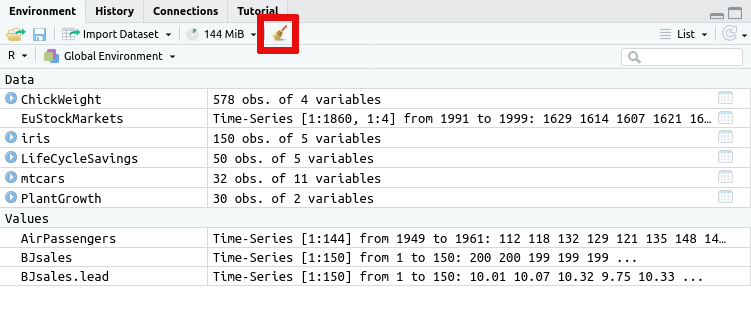
Alternatively you can remove all data saved in your R session using the
broom icon on the Environment tab:
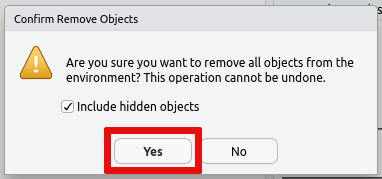
If you wish to prevent this issue in the first case, then you can also
turn off saving the data in your session on exit and/or turn off loading
the saved data on startup. This is accomplished via the Global
Options... accessible from the Tools menu:
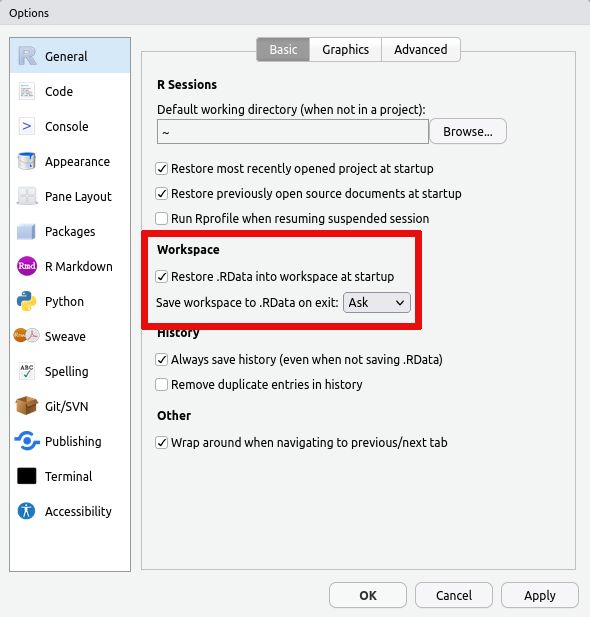
Should your R session have grown to such a size that you simply cannot login and clean it up, then it my be necessary to remove the files containing the data that R/RStudio has saved. This data is stored in two locations:
In the
.RDatafile in your home (~/.RData). This is where R saves your data if you answer yesSave workspace image? [y/n/c]when quitting R.In the
environmentfile in your RStudio session folder (~/.local/share/rstudio/sessions/active/session-*/suspended-session-data/environment). This is where Rstudio saves your data should your login time-out while using RStudio.
Please Contact us and we can help you remove the correct files.
5.3.7. Jupyter Notebooks: Browser error when opening URL#
Depending on your browser you may receive one of the following errors. The typical causes are listed, but the exact error message will depend on your browser. It is therefore helpful to review all possible causes listed here.
When using Chrome, the cause is typically listed below the line that says "This site can't be reached".
"The connection was reset"
This typically indicates that Jupyter Notebook isn't running on the server, or that it is running on a different port than the one you've forwarded. Check that Jupyter Notebook is running and make sure that your forwarded ports match those used by Jupyter Notebook on Esrum.
"localhost refused to connect" or "Unable to connect"
This typically indicates that port forwarding isn't active, or that you have entered the wrong port number in your browser. Verify that port forwarding is active and that you are using the correct port number in the
localhostURL."Check if there is a typo in esrumweb01fl" or "We're having trouble finding that site"
You are must likely connecting from a network outside of KU. Make sure that you are using a wired connection at CBMR and/or that the VPN is activated and try again.