7. Troubleshooting#
This page gathers all troubleshooting steps from the other parts of this documentation for easy access.
7.1. Connecting to Esrum#
If have not already been granted access to the server, then please see the Accessing the cluster page before continuing!
7.1.1. Timeout while connecting to the cluster#
You may experience timeout errors when you attempt to connect to the server:

Firstly verify that you are (still) a member of the appropriate group as described in Applying for access to the cluster, as KU-IT may automatically revoke your memberships under certain conditions. No notifications are sent when that happens!
Secondly verify that you are correctly connected to the KU network:
You must either use a wired connection while physically at CBMR.
Or you must connect via the KU VPN.
It is not possible to connect to using WIFI at CBMR nor is it possible to from outside of CBMR without the use of the VPN. See the official VPN documentation in Danish or English for more information.
If neither using a wired connection nor connecting the the KU VPN fixes the problem, you may need to create a support ticket to have KU IT permit you to connect to the server.
Login to the KU IT Serviceportal.
Click the
Create Ticket/Opret Sagbutton.Tick/select the
Research IT/Forsknings ITcategory in the category/filters list on the left side of the screen.Click the
Research Applications Counseling and Support/Forskningsapplikationer Rådgivning og supportbutton.Click the
REQUEST/Bestilbutton.Write something like "SSH connection times out when attempting to connect to esrumhead01fl.unicph.domain" in the "Please describe" text-box and describe the steps you have taken to try to fix this problem: Tried wired connection at CBMR, tried VPN, etc.
Write "esrumhead01fl.unicph.domain" in the System name text-box.
Click the
Review & submit/Gennemse & bestilbutton.Review your ticket and then click the
Submit/Bestilbutton.
Warning
If you are not an employee at CBMR you may not have permission to open a ticket as described above. In that case simply Contact us and we will forward your issue to KU-IT.
7.1.2. File uploads using MobaXterm never start#
Please make sure that your session is configured to use the SCP
(enhanced speed) browser type. See step 4 in in the
Configuring MobaXterm section.
7.1.3. KU network-folders in ~/ucph are not available when using MobaXterm#
Please make sure that you have disabled use of GSSAPI Kerberos as
described in the Configuring MobaXterm section.
7.2. Slurm basics#
7.2.1. Error: Requested node configuration is not available#
If you request too many CPUs (more than 128), or too much RAM (more than 1993 GB for compute nodes and more than 3920 GB for the GPU node), then Slurm will report that the request cannot be satisfied:
# More than 128 CPUs requested
$ sbatch --cpus-per-task 200 my_script.sh
sbatch: error: CPU count per node can not be satisfied
sbatch: error: Batch job submission failed: Requested node configuration is not available

# More than 1993 GB RAM requested on compute node
$ sbatch --mem 2000G my_script.sh
sbatch: error: Memory specification can not be satisfied
sbatch: error: Batch job submission failed: Requested node configuration is not available
To solve this, simply reduce the number of CPUs and/or the amount of RAM
requested to fit within the limits described above. If your task does
require more than 1993 GB of RAM, then you also need to add the
--partition=gpuqueue, so that your task gets scheduled on the
GPU/High-MEM node.
Additionally, you may receive this message if you request GPUs without specifying the correct queue or if you request too many GPUs:
# --partition=gpuqueue not specified
$ srun --gres=gpu:a100:2 -- echo "Hello world!"
srun: error: Unable to allocate resources: Requested node configuration is not available

# More than 2 GPUs requested
$ srun --partition=gpuqueue --gres=gpu:a100:3 -- echo "Hello world!"
srun: error: Unable to allocate resources: Requested node configuration is not available
To solve this error, simply avoid requesting more than 2 GPUs, and
remember to include the --partition=gpuqueue option.
See also the Using the GPU/hi-MEM node section.
7.3. Rstudio#
7.3.2. R: libstdc++.so.6: version 'GLIBCXX_3.4.26' not found#
If you build an R library on the head/compute nodes using a version of
the GCC module other than gcc/8.5.0, then this library may fail to
load on the RStudio node or when gcc/8.5.0 is loaded on the
head/compute nodes:
$ R
> library(wk)
Error: package or namespace load failed for ‘wk’ in dyn.load(file, DLLpath = DLLpath, ...):
unable to load shared object '/home/abc123/R/x86_64-pc-linux-gnu-library/4.3/wk/libs/wk.so':
/lib64/libstdc++.so.6: version `GLIBCXX_3.4.26' not found (required by /home/abc123/R/x86_64-pc-linux-gnu-library/4.3/wk/libs/wk.so)
To fix his, you will need to reinstall the affected R libraries using one of two methods:
Connect to the RStudio server as described in the RStudio section, and simply install the affected packages using the
install.packagesfunction:> install.packages("wk")You may need to repeat this step multiple times, for every package that fails to load.
Connect to the head node or a compute node, and take care to load the correct version of GCC before loading R:
$ module load gcc/8.5.0 R/4.3.2
$ R
> install.packages("wk")
The name of the affected module can be determined by looking at the
error message above. In particular, the path
/home/abc123/R/x86_64-pc-linux-gnu-library/4.3/wk/libs/wk.so
contains a pair of folders named R/x86_64-pc-linux-gnu-library,
which specifies the kind of system we are running on. Immediately after
that we find the package name, namely wk in this case.
You can identify all affected packages in your "global" R library by running the following commands:
module load gcc/8.5.0 R/4.3.2
# cd to your R library
cd ~/R/x86_64-pc-linux-gnu-library/4.3/
# Test every installed library
for lib in $(ls);do echo "Testing ${lib}"; Rscript <(echo "library(${lib})") > /dev/null;done
Output will look like the following:
Testing httpuv
Testing igraph
Error: package or namespace load failed for ‘igraph’ in dyn.load(file, DLLpath = DLLpath, ...):
unable to load shared object '/home/abc123/R/x86_64-pc-linux-gnu-library/4.3/igraph/libs/igraph.so':
/opt/software/gcc/8.5.0/lib64/libstdc++.so.6: version `GLIBCXX_3.4.29' not found (required by /home/abc123/R/x86_64-pc-linux-gnu-library/4.3/igraph/libs/igraph.so)
Execution halted
Testing isoband
Error: package or namespace load failed for ‘isoband’ in dyn.load(file, DLLpath = DLLpath, ...):
unable to load shared object '/home/abc123/R/x86_64-pc-linux-gnu-library/4.3/isoband/libs/isoband.so':
/opt/software/gcc/8.5.0/lib64/libstdc++.so.6: version `GLIBCXX_3.4.29' not found (required by /home/abc123/R/x86_64-pc-linux-gnu-library/4.3/isoband/libs/isoband.so)
Execution halted
Testing labeling
Testing later
Locate the error messages like the one shown above in the output and and
reinstall the affected libraries using the install.packages command:
$ R
> install.packages(c("igraph", "isoband"))
7.3.3. RStudio: Incorrect or invalid username/password#
Please make sure that you are entering your username in the short form
and that you have been added as a member of the SRV-esrumweb-users
group (see above). If the problem persists, please Contact us
for assistance.
7.3.4. RStudio: Logging in takes a very long time#
Similar to regular R, RStudio will automatically save the data you have loaded into your R session and will restore it when you return later, so that you can continue your work. However, this many result in large amounts of data being saved and loading this data may result in a large delay when you attempt to login at a later date.
It is therefore recommended that you regularly clean up your workspace using the built in tools, when you no longer need to have the data loaded in R.
You can remove individual bits of data using the rm function in R.
This works both when using regular R and when using RStudio. The
following gives two examples of using the rm function, one removing
a single variable and the other removing all variables in the current
session:
# 1. Remove the variable `my_variable`
rm(my_variable)

# 2. Remove all variables from your R session
rm(list = ls())
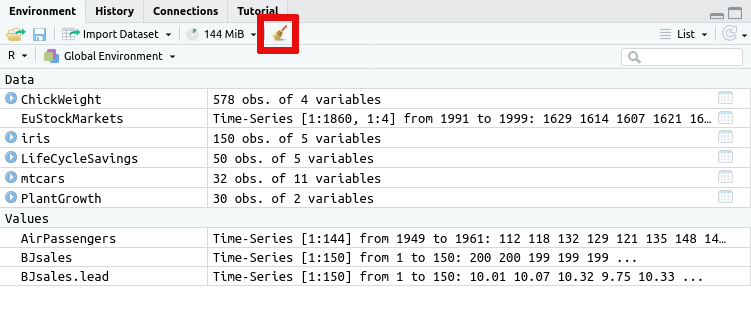
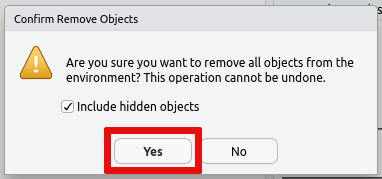
Alternatively you can remove all data saved in your R session using the
broom icon on the Environment tab:
If you wish to prevent this issue in the first case, then you can also
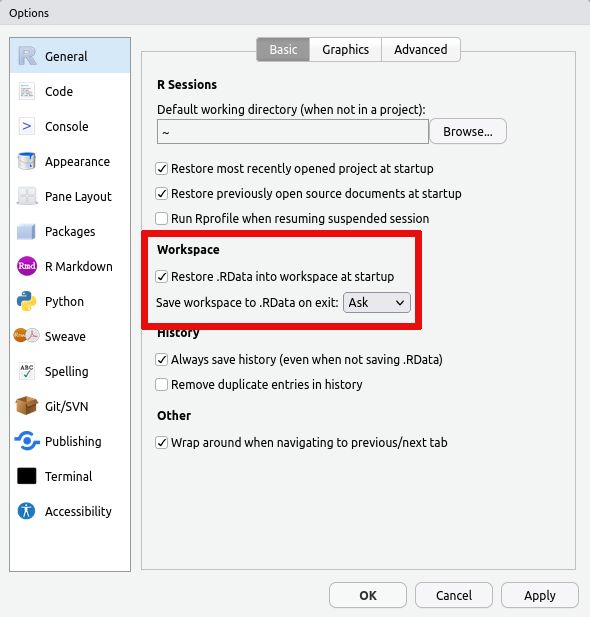
turn off saving the data in your session on exit and/or turn off loading
the saved data on startup. This is accomplished via the Global
Options... accessible from the Tools menu:
Should your R session have grown to such a size that you simply cannot login and clean it up, then it my be necessary to remove the files containing the data that R/RStudio has saved. This data is stored in two locations:
In the
.RDatafile in your home (~/.RData). This is where R saves your data if you answer yesSave workspace image? [y/n/c]when quitting R.In the
environmentfile in your RStudio session folder (~/.local/share/rstudio/sessions/active/session-*/suspended-session-data/environment). This is where Rstudio saves your data should your login time-out while using RStudio.
Please Contact us and we can help you remove the correct files.
7.3.5. Jupyter Notebooks: Browser error when opening URL#
Depending on your browser you may receive one of the following errors. The typical causes are listed, but the exact error message will depend on your browser. It is therefore helpful to review all possible causes listed here.
When using Chrome, the cause is typically listed below the line that says "This site can't be reached".
"The connection was reset"
This typically indicates that Jupyter Notebook isn't running on the server, or that it is running on a different port than the one you've forwarded. Check that Jupyter Notebook is running and make sure that your forwarded ports match those used by Jupyter Notebook on Esrum.
"localhost refused to connect" or "Unable to connect"
This typically indicates that port forwarding isn't active, or that you have entered the wrong port number in your browser. Verify that port forwarding is active and that you are using the correct port number in the
localhostURL."Check if there is a typo in esrumweb01fl" or "We're having trouble finding that site"
You are must likely connecting from a network outside of KU. Make sure that you are using a wired connection at CBMR and/or that the VPN is activated and try again.