4.3.2. Advanced Slurm jobs#
The following page describes how to use the srun command to run
simple commands on the cluster, how to queue batches of jobs using
sbatch, including how to manage these jobs and how to map
4.3.2.1. Running commands using srun#
The srun command can be used to queue and execute simple commands on
the compute nodes, and for most part it should feel no different than
running a command without Slurm. Simply prefix your command with
srun and the queuing system takes care of running it on the first
available compute node:
$ srun gzip chr20.fasta
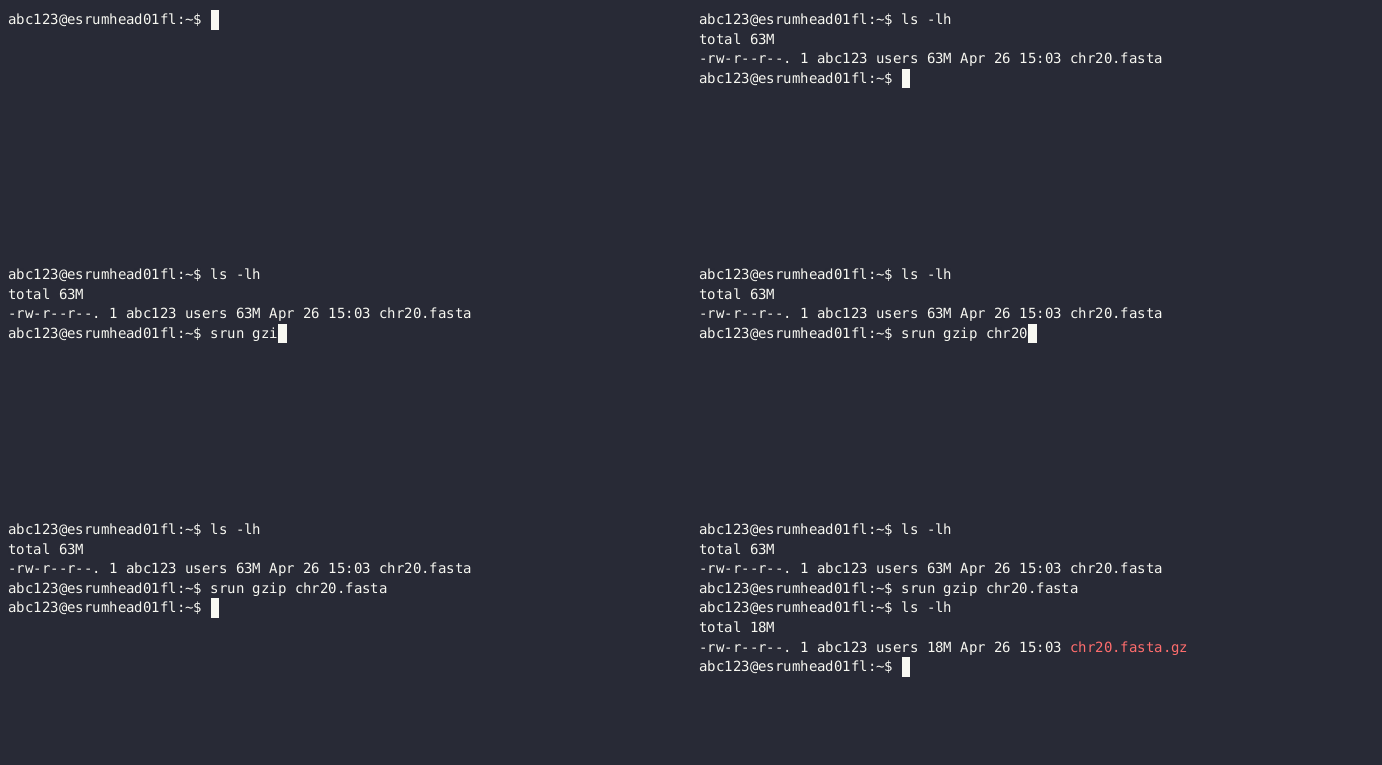
Except for the srun prefix, this is exactly as if you ran the
gzip command on the head node. However, if you need to pipe output
to a file or to another command, then you must wrap your commands in a
bash (or similar) script:
$ srun bash my_script.sh
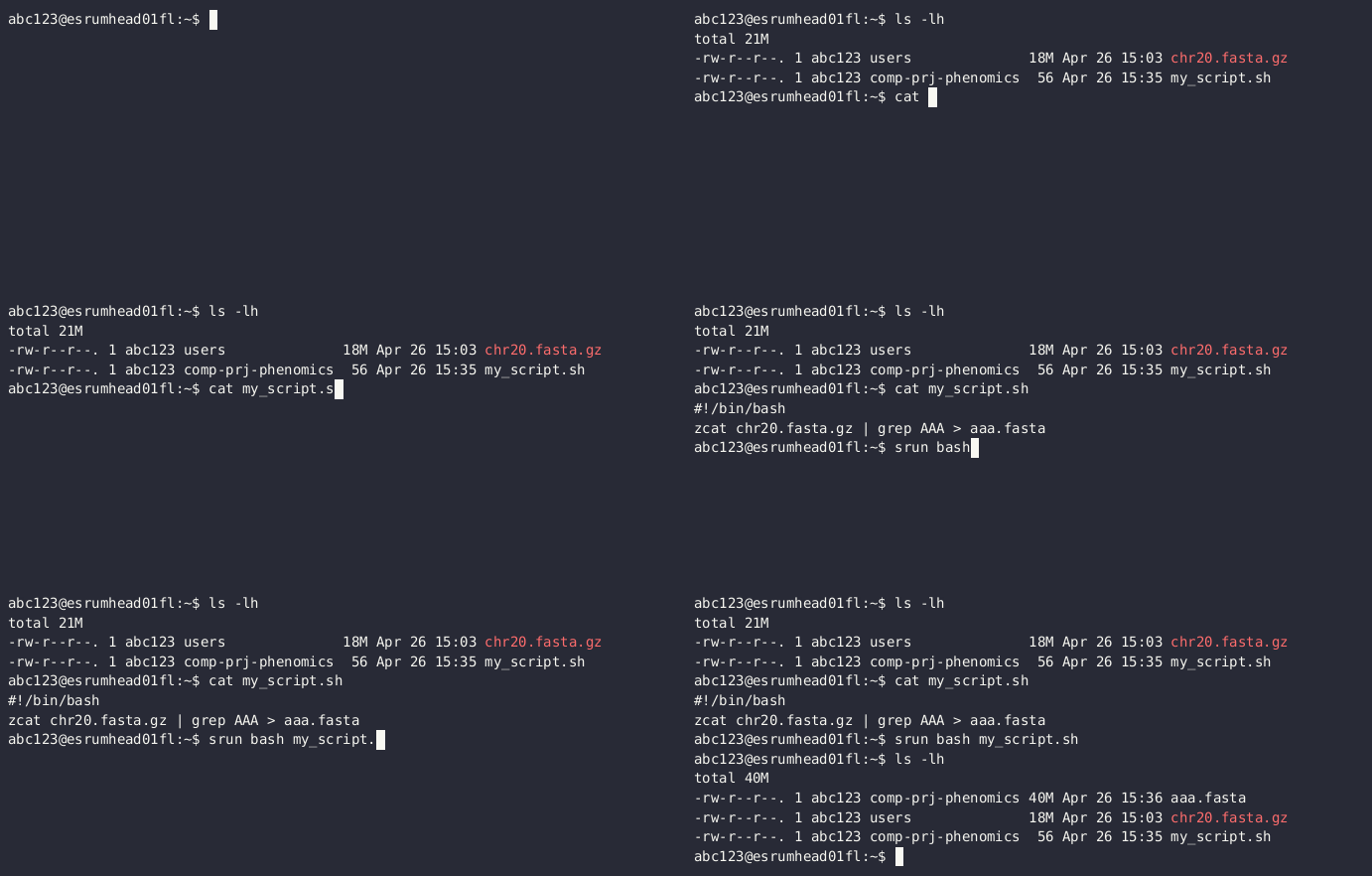
But at that point you might as well use sbatch with the --wait
option if simply you want to be able to wait for your script to finish.
4.3.2.1.1. Cancelling srun#
To cancel a job running with srun, simply press Ctrl + c twice within 1 second:
$ srun gzip chr20.fasta
<ctrl+c> srun: interrupt (one more within 1 sec to abort)
srun: StepId=8717.0 task 0: running
<ctrl+c> srun: sending Ctrl-C to StepId=8717.0
srun: Job step aborted: Waiting up to 32 seconds for job step to finish.
See also the Cancelling jobs section on the Basic Slurm jobs page.
4.3.2.2. Monitoring your jobs#
Slurm offers a number of ways in which you may monitor your jobs:
The
squeuecommand allows you to list jobs that have not yet finished (or failed). The recommended use is eithersqueue --meto show all your jobs orsqueue --job ${JOB_ID}, where${JOB_ID}is the ID of the job whose status you want to inspect.The
sacctcommand allows you list jobs that have finished running (or failed).The
--waitoption makessbatchwait until your job has completed before returning (similar to howsrunworks). This is for example useful if you want to queue and wait for jobs in a script.In addition to actively monitoring your jobs, it is possible to receive email notifications when your jobs are started, finish, fail, are requeued, or some combination. This is accomplished by using the
--mail-userand--mail-typeoptions:$ sbatch my_script.sh --mail-user=abc123@ku.dk --mail-type=END,FAIL Submitted batch job 8503
When run like this, you will receive notifications at
abc123@ku.dk(remember to use your account KU email address!) when the job is completed or fails. The possible options areNONE(the default),BEGIN,END,FAIL,REQUEUE,ALL, or some combination as shown above.
4.3.2.2.1. Monitoring processes in jobs#
In addition to monitoring jobs at a high level, it is possible to actively monitor the processes running in your jobs via (interactive) shells running on the same node as the job you wish to monitor. This is particularly useful to make sure that tasks make efficient use of the allocated resources.
In these examples we will use the htop command to monitor our jobs,
but you can use basic top, a bash shell, or any other command
you prefer, but see the warning below regarding GPU resources.
The first option for directly monitoring jobs is to request a job on the
same server using the --nodelist option to specify the exact node
you wish your job to monitor:
$ squeue --me
JOBID PARTITION     NAME     USER ST       TIME  NODES NODELIST(REASON)
 8503 standardq my_scrip   abc123  R       0:02      1 esrumcmpn03fl
$ srun --pty --nodelist esrumcmpn03fl htop
This requests an interactive shell on the node on which our job is
running ( esrumcmpn03fl) and starts the htop tool. This method
requires that there are free resources on the node, but has the
advantage that it does not impact your job.
Alternatively, you can make use of (overlap) the resources used by the
job you wish to monitor, which means that you can perform your
monitoring even if the node is completely booked. This is done using the
--overlap and --jobid command-line options:
$ squeue --me
JOBID PARTITION     NAME     USER ST       TIME  NODES NODELIST(REASON)
 8503 standardq my_scrip   abc123  R       0:02      1 esrumcmpn03fl
$ srun --pty --overlap --jobid 8503 htop
The --jobid option takes as its argument the ID of the job we wish
to monitor, which we can obtain using for example the squeue --me
command (from the JOBID column).
Warning
It is not possible to use --overlap when you have reserved GPUs
using the --gres option. This also means that you cannot monitor
GPU resource usage in this manner, as other jobs on the same node
cannot access already reserved GPUs. See the
Monitoring GPU utilization section for instructions on how
to monitor GPU utilization.
4.3.2.3. Running multiple tasks using arrays#
As suggested by the name, the sbatch command is able to run jobs in
batches. This is accomplished using "job arrays", which allows you to
automatically queue and run the same command on multiple inputs.
For example, we could expand on the example above to gzip multiple
chromosomes using a job array. To do so, we first need to update the
script to make use of the SLURM_ARRAY_TASK_ID variable, which
specifies the numerical ID of a task:
#!/bin/bash
#SBATCH --cpus-per-task=8
#SBATCH --time=60
#SBATCH --array=1-5%3

module load igzip/2.30.0
igzip --threads ${SLURM_CPUS_PER_TASK} "chr${SLURM_ARRAY_TASK_ID}.fasta"
The --array=1-5%3 option specifies that we want to run 5 tasks,
numbered 1 to 5, each of which is assigned 8 CPUs and each of which is
given 60 minutes to run. The %3 furthermore tells Slurm that at most
3 tasks can be run simultaneously (see below).
The above simply uses a contiguous range of job IDs, but it is also
possible to specify a combination individual values (--array=1,2,3),
ranges (--array=1-10,20-30), and more. See the sbatch manual
page for a description of ways in which to specify lists or ranges of
task IDs.
Note
Values used with --array must be in the range 0 to 1000.
Our script can then be run as before:
$ ls
chr1.fasta chr2.fasta chr3.fasta chr4.fasta chr5.fasta my_script.sh
$ sbatch my_script.sh
Submitted batch job 8504
$ squeue --me
 JOBID PARTITION     NAME     USER ST       TIME  NODES NODELIST(REASON)
8504_1 standardq my_scrip   abc123  R       0:02      1 esrumcmpn01fl
8504_2 standardq my_scrip   abc123  R       0:02      1 esrumcmpn01fl
8504_3 standardq my_scrip   abc123  R       0:02      1 esrumcmpn01fl
8504_4 standardq my_scrip   abc123  R       0:02      1 esrumcmpn01fl
8504_5 standardq my_scrip   abc123  R       0:02      1 esrumcmpn01fl
$ ls
chr1.fasta.gz  chr4.fasta.gz  slurm-8507_1.out  slurm-8507_4.out
chr2.fasta.gz  chr5.fasta.gz  slurm-8507_2.out  slurm-8507_5.out
chr3.fasta.gz  my_script.sh   slurm-8507_3.out
Unlike a normal sbatch command, where Slurm creates a single
.out file, an sbatch --array command will create an .out
file is for each task in the array.
In this example there was a simple one-to-one mapping between the
SLURM_ARRAY_TASK_ID and our data, but that is not always the case.
The Mapping task IDs to data section below describes several ways you
might use to map the SLURM_ARRAY_TASK_ID variable to more complex
data/filenames.
4.3.2.3.1. Limiting simultaneous jobs#
By default Slurm will attempt to run every job in an array at the same time, provided that there are resources available. Since Esrum is a shared resource we ask that you consider how much of the cluster you'll be using and limit the number of simultaneous jobs to a reasonable number.
Limiting the number of simultaneous jobs is done by appending a %
and a number at the end of the --array value as shown above. For
example, in the following script we queue a job array containing 100
jobs, each requesting 8 CPUs. However, the %16 appended to the
--array ensures that at most 16 of these jobs are running at the
same time:
#!/bin/bash
#SBATCH --cpus-per-task=8
#SBATCH --array=1-100%16
This ensures that we use no more than 1 compute node's worth of CPUs (128 CPUs per node) and thereby leave plenty of capacity available for other users.
In addition to limiting the number of simultaneously running jobs, you
can also give your jobs a lower priority using the --nice option:
#SBATCH --nice
This ensures that other users' jobs, if any, will be run before jobs in
your array and thereby prevent your job array from always using the
maximum number of resources possible. Combined with a reasonable %
limit this allows you to run more jobs simultaneously, than if you just
used a % limit, without negatively impacting other users.
Please reach out if you are running a large number of (job array) jobs and are in doubt about how many to run at the same time.
4.3.2.3.2. Managing job arrays#
Job arrays can either be cancelled as a whole or in part. To cancel the entire job (all tasks in the array) simply use the primary job ID before the underscore/dot:
$ scancel 8504
To cancel part of a batch job/array, instead specify the ID of the
sub-task after the ID of the batch job, using a dot (.) to separate
the two IDs instead of an underscore (_):
$ scancel 8504.1
Warning
While it is possible to use sbatch with jobs of any size, it
should be remembered that Slurm imposes some overhead on jobs. It is
therefore preferable to run jobs consisting of a large number of
tasks in batches, instead of running each task individually.
4.3.2.3.3. Mapping task IDs to data#
Using sbatch arrays requires that you map a number (the array task
ID) to a filename or similar. The above example assumed that filenames
were numbered, but that is not always the case.
The following describes a few ways in which you can map array task ID to filenames in a bash script.
Using numbered filenames:
The example showed how to handle filenames where the numbers were simply written as 1, 2, etc:
# Simple numbering: sample1.vcf, sample2.vcf, etc.
FILENAME="sample${SLURM_ARRAY_TASK_ID}.vcf"
However, it is also possible to format numbers in a more complicated manner (e.g. 001, 002, etc.), using for example the printf command:
# Formatted numbering: sample001.vcf, sample002.vcf, etc.
FILENAME=$(printf "sample%03i.vcf" ${SLURM_ARRAY_TASK_ID})
See above for an example script and the expected output.
Using a table of filenames:
Given a text file
my_samples.txtcontaining one filename per line:/path/to/first_sample.vcf /path/to/second_sample.vcf /path/to/third_sample.vcf
# Prints the Nth line
FILENAME=$(sed "${SLURM_ARRAY_TASK_ID}q;d" my_samples.txt)
A sbatch script could look as follows:
#!/bin/bash
#SBATCH --array=1-3

FILENAME=$(sed "${SLURM_ARRAY_TASK_ID}q;d" my_samples.txt)

module load htslib/1.18
bgzip "${FILENAME}"
Using a table of numbered samples (
my_samples.tsv):ID
Name
Path
1
first
/path/to/first_sample.vcf
2
second
/path/to/second_sample.vcf
3
third
/path/to/third_sample.vcf
# Find row where 1. column matches SLURM_ARRAY_TASK_ID and print 3. column
FILENAME=$(awk -v ID=${SLURM_ARRAY_TASK_ID} '$1 == ID {print $3; exit}' my_samples.tsv)
By default
awkwill split columns by any whitespace, but if you have a tab separated file (.tsv) file it is worthwhile to specify this using theFS(field separator) option:# Find row where 1. column matches SLURM_ARRAY_TASK_ID and print 3. column FILENAME=$(awk -v FS="\t" -v ID=${SLURM_ARRAY_TASK_ID} '$1 == ID {print $3; exit}' my_samples.tsv)
This ensures that
awkreturns the correct cell even if other cells contain whitespace.A sbatch script could look as follows:
#!/bin/bash
#SBATCH --array=1-3

# Grab second column where the first column equals SLURM_ARRAY_TASK_ID
NAME=$(awk -v FS="\t" -v ID=${SLURM_ARRAY_TASK_ID} '$1 == ID {print $2; exit}' my_samples.tsv)
# Grab third column where the first column equals SLURM_ARRAY_TASK_ID
FILENAME=$(awk -v FS="\t" -v ID=${SLURM_ARRAY_TASK_ID} '$1 == ID {print $3; exit}' my_samples.tsv)

module load htslib/1.18
echo "Now processing sample '${NAME}'"
bgzip "${FILENAME}"
4.3.2.4. Additional resources#
Slurm documentation
Slurm summary (PDF)